

Seeing the message “this page has been blocked by strict blocking rules.” means a security filter stopped the webpage before it could load—either inside your own browser or at the website’s firewall. The website itself is usually online; your connection simply matched a predefined block list, tracking filter, or automated traffic rule.
In this guide, you will learn what this warning actually means, which client-side or server-side triggers cause it, and how to pinpoint the source in under two minutes. We will then walk through safe fixes for everyday visitors, rule adjustments for site owners, and practical steps for isolating IP or regional blocks during multi-region checks.
What Does “This Page Has Been Blocked by Strict Blocking Rules” Mean?
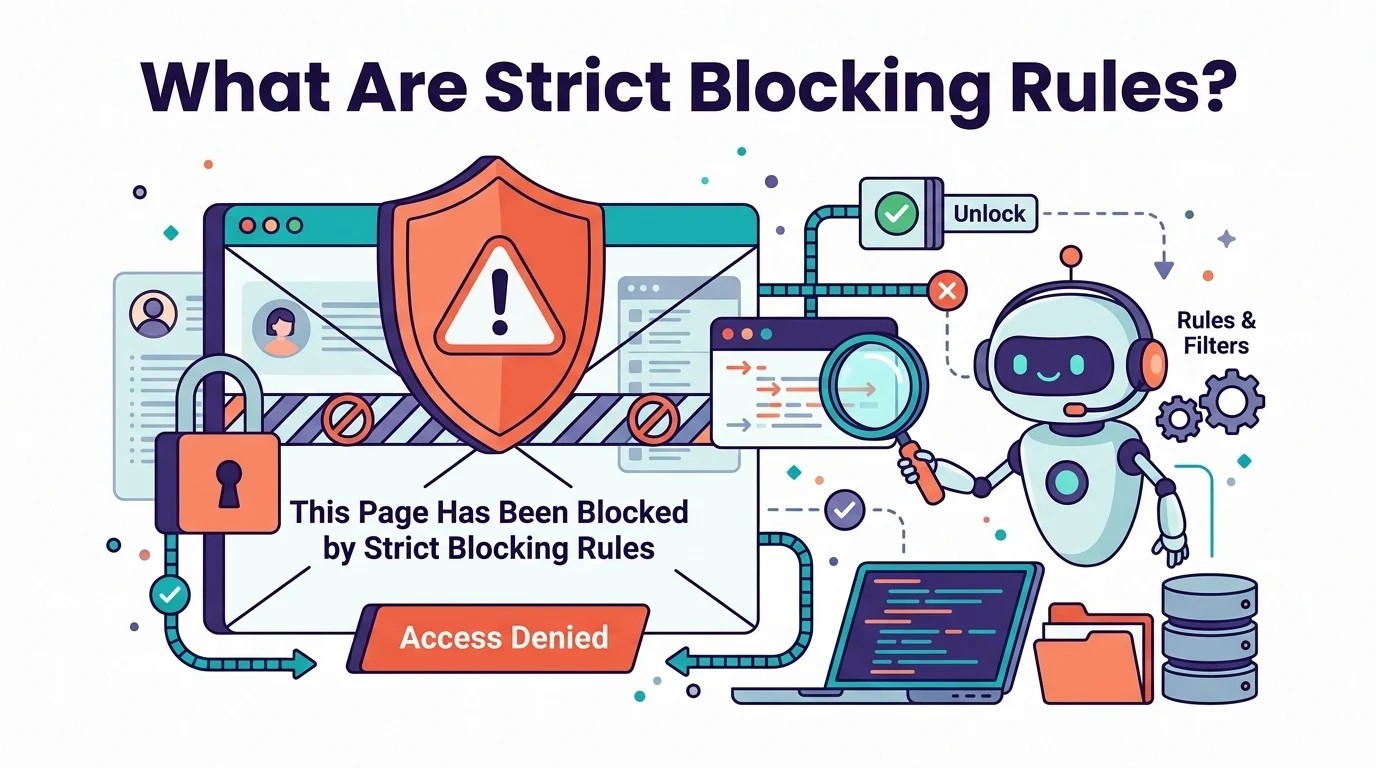
When a browser or firewall displays “this page has been blocked by strict blocking rules.”, it is telling you that an automated gatekeeper intercepted the entire main webpage—not just a single banner ad or background script—based on a preset filtering rule.
To understand how to clear it, it helps to separate the two halves of the phrase:
- Strict Blocking (Full-Page Interception): Standard content blockers quietly hide individual page elements like pop-ups or analytics trackers while letting you read the article. Strict blocking goes a step further by halting the main HTML document itself, replacing the whole page with a warning screen before any content renders.
- Blocking Rules (Preset Filter Lists or Policies): Every strict block is triggered by a specific rule matched against the domain name, URL path, IP address, or request headers. Those rules can live on your device—such as open-source malware or tracker blocklists inside extensions like uBlock Origin and AdGuard—or on the website’s edge security layer, such as a Web Application Firewall (WAF).
Because the wording looks nearly identical whether the stop happens on your computer or on a remote server, the fastest way forward is identifying which side triggered the rule before changing any settings.
What Causes “This Page Has Been Blocked by Strict Blocking Rules”?
Because both local tools and remote servers can enforce strict rules, the same message appears in a few distinct situations. Comparing where the block happens helps narrow down the cause before you adjust any settings.
| Block Source | Typical Layer | Common Technical Signal | Why It Triggers |
| Browser Extensions | Client browser | ERR_BLOCKED_BY_CLIENT in DevTools | Full-domain rules in tools like uBlock Origin or AdGuard match a tracker, ad, or malware list |
| Website Firewall (WAF) | Server edge / CDN | HTTP 403 Forbidden with a Cloudflare Ray ID | Automated traffic filters, high security sensitivity, or regional rules reject the request |
| Response Security Headers | Browser + Server | ERR_BLOCKED_BY_RESPONSE | Strict Cross-Origin Resource Sharing (CORS) or Content Security Policy (CSP) headers block embedded content |
| Local Network or DNS | Router / ISP / Office | Connection reset or custom block page | Corporate firewalls, school Wi-Fi, or DNS filters block the domain category |
How to Diagnose the Block in Under Two Minutes?
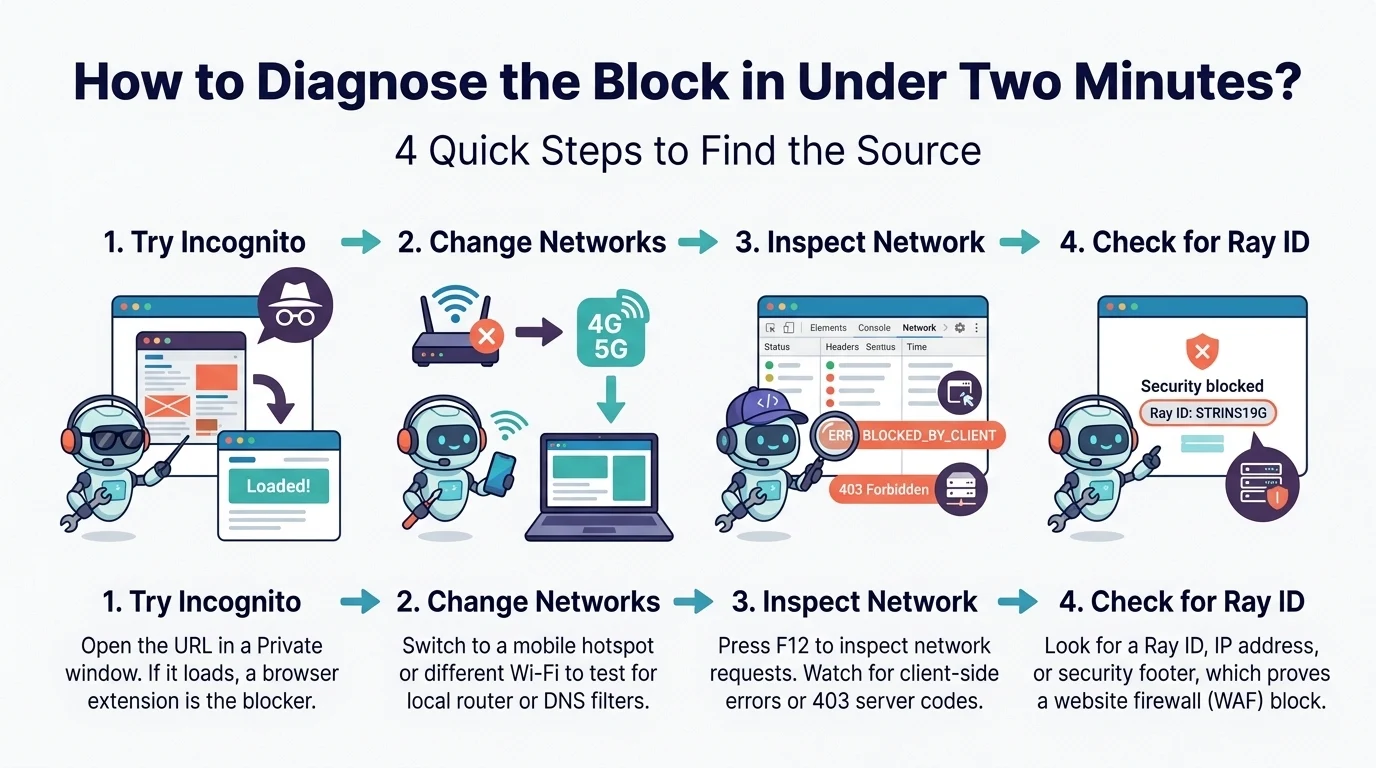
Instead of guessing and resetting everything at once, run through four quick checks in order to confirm whether the block starts on your device or on the target website:
- Open the URL in a Private or Incognito Window: Most browser extensions stay disabled by default in private mode. If the webpage loads normally here, one of your active extensions—not the website—is enforcing the strict blocking rule.
- Switch to Another Network Connection: Test the same page on a mobile hotspot or a different Wi-Fi network. If the page opens on mobile data but fails on office or public Wi-Fi, a local router firewall or DNS filter is blocking the domain.
- Check the Status Code in Browser Developer Tools: Press
F12(or right-click and choose Inspect), open the Network tab, and reload the page. When inspecting network requests, look at the failed document row:ERR_BLOCKED_BY_CLIENTpoints directly to a local browser extension, while an HTTP403status means the remote server rejected the connection. - Look for a Ray ID or Security Footer on the Warning Page: If the block screen displays a Cloudflare Ray ID, a security provider logo, or your public IP address, the block comes from the website’s server-side firewall rather than your browser.
How Can Visitors Fix This Block Safely?
If your quick diagnosis confirms that the block comes from your browser or local network—and you are sure the website address is legitimate—apply these targeted steps instead of turning off all browser protections globally:
- Allowlist Only the Trusted Domain in Your Extension: On a strict blocking warning screen from tools like uBlock Origin or AdGuard, choose the temporary Proceed option or add a single-site exception rather than disabling the entire blocker. Double-check the domain spelling first so you do not bypass warnings on lookalike phishing links.
- Switch Browser Tracking Protection from “Strict” to “Standard”: Built-in privacy modes in Firefox, Edge, or Brave sometimes block essential login scripts or cross-domain redirects under their highest setting. Lowering protection to Standard for that site preserves baseline tracking defense while letting the page load.
- Clear Corrupted Cookies and Site Data for That Domain: Old session tokens or cached security challenges can trigger repeated blocks. Open your browser’s site settings for that specific URL, clear its stored cookies and cache, and reload the page cleanly.
- Update Local DNS or Check Network Filtering: If the page loads on mobile data but fails on Wi-Fi, switch your device DNS to a standard public resolver (such as
1.1.1.1or8.8.8.8) or ask your office network administrator whether a category filter is blocking the domain.
How Can Site Owners Fix False Strict Blocks?
When a website’s own edge security rules trigger “this page has been blocked by strict blocking rules.” for legitimate visitors, local browser tweaks will not solve the problem. Site administrators and developers can resolve false positives in three steps:
- Collect the Ray ID and Request Details from Blocked Users: Include a clear error reference—such as a Cloudflare Ray ID, timestamp, and support contact—on custom block pages so visitors can report false blocks with actionable diagnostic identifiers.
- Inspect WAF Logs and Security Headers: Search your CDN or firewall event logs using the Ray ID to identify the exact rule that fired. When investigating Cloudflare 403 errors or
ERR_BLOCKED_BY_RESPONSEreports, verify whether an overly broad managed rule, bot threshold, or strictCross-Origin-Resource-Policy/Content-Security-Policyheader is rejecting normal browser requests. - Replace Blanket Blocks with Targeted Challenges: Rather than applying a hard
Blockaction across broad IP ranges or entire countries, narrow the rule to suspicious URI paths and switch the action to a Managed Challenge so real human visitors can pass verification without losing access.
Master proxy setup, integration and performance optimization quickly with IPFLY guides
How to Separate Local Blocks from IP or Region Bans?
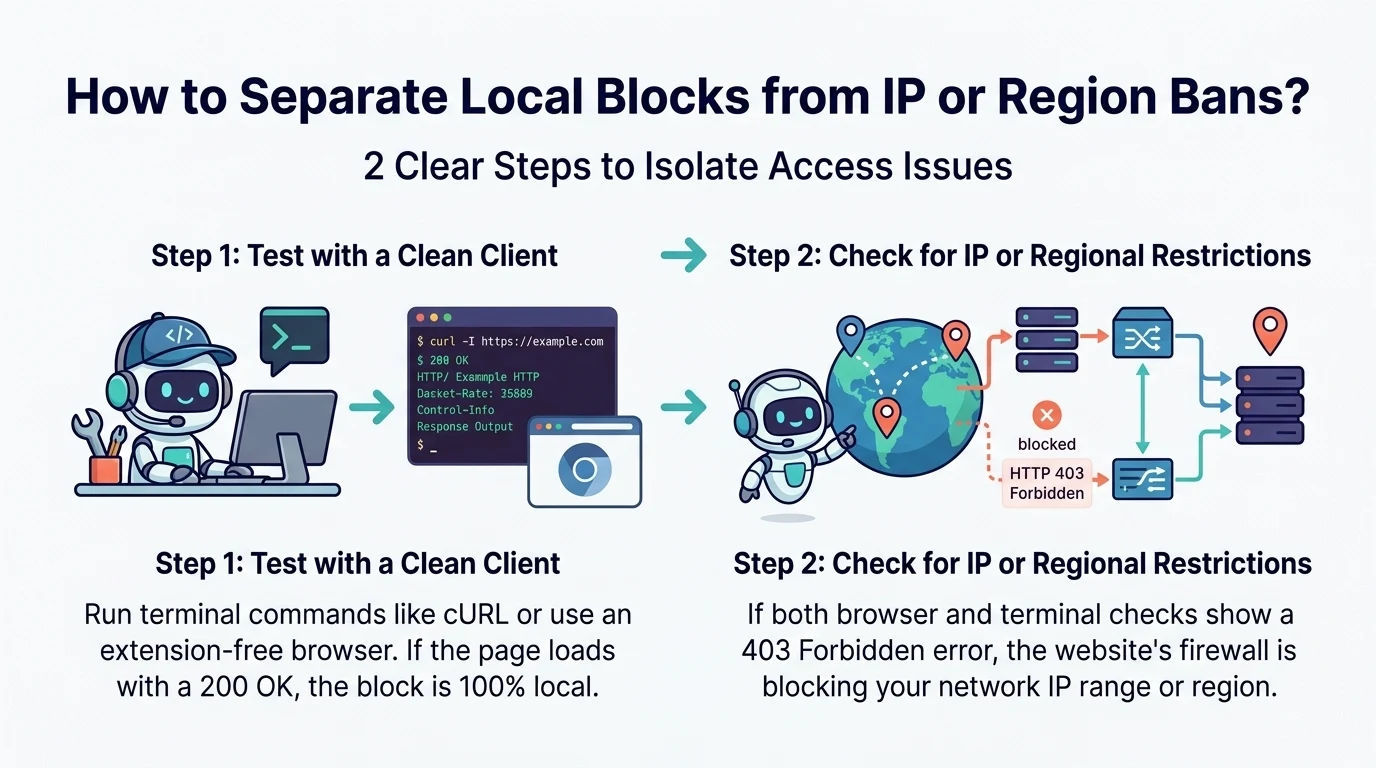
For teams running cross-border market research, SEO audits, or automated availability checks, a strict blocking screen can be misleading. Clearing cookies or switching browsers will never lift a server-side IP reputation ban, and rotating IPs will never fix a local browser filter. Isolating the exact layer in two quick tests prevents wasted troubleshooting.
Step 1: Test from a Clean, Extension-Free Client
Run a basic request from an extension-free browser profile or a simple terminal check (curl -I https://example.com). If the terminal receives a normal 200 OK response while your main browser shows a block screen, the issue is 100% local (ERR_BLOCKED_BY_CLIENT or a local DNS rule) rather than a firewall ban on your connection.
Step 2: Check Whether IP Reputation or Region Rules Triggered the WAF
If both your browser and terminal receive an HTTP 403 or firewall block page, the target server is filtering your network exit—often because shared data-center IPs or out-of-region traffic trigger strict rules. Comparing responses from a residential-grade exit in the target country helps confirm whether proxy detection errors or geographic restrictions are causing the block.
How to Verify and Maintain Access Across Regions with IPFLY?

When you do not control the target website’s firewall—and need to verify how pages load for real users in specific countries or run approved multi-region data checks—routing requests through clean, well-matched connections keeps results accurate.
Three Core IPFLY Proxy Options for Regional Verification
To match different testing, monitoring, and collection workflows, IPFLY offers three core proxy lines supporting HTTP(S) and SOCKS5 protocols:
- IPFLY Residential Proxies: Route requests through a global pool of real residential IP addresses with country- and city-level targeting. You can rotate to a fresh IP per request or hold one IP for a short sticky-session window, billed strictly by traffic volume.
- IPFLY ISP Proxies: Provide dedicated, non-rotating IP addresses hosted on real Internet Service Provider (ISP) infrastructure. Each IP remains fixed over your chosen billing period (priced per IP and duration), offering consistent session continuity.
- IPFLY Datacenter Proxies: Deliver dedicated, static IP addresses hosted on high-speed server infrastructure, billed per IP and duration. They prioritize high bandwidth and predictable cost for fixed-endpoint testing, though websites with strict firewall rules may still scrutinize data-center IP ranges more closely than residential connections.
Which Option Fits Your Troubleshooting or Data Workflow?
Understanding crawler proxy fundamentals makes it easy to pair the right connection type with your task:
- Pick Residential Proxies when reproducing strict blocking warnings across multiple countries or cities, checking localized storefront availability, or running distributed public page checks where pay-per-traffic billing keeps testing flexible.
- Pick Static ISP Proxies when monitoring a fixed set of regional endpoints over weeks or maintaining steady, authenticated access to an authorized dashboard without frequent IP shifts.
- Pick Dedicated Datacenter Proxies when running high-throughput benchmark checks against your own staging servers or open endpoints where speed and cost per IP matter most.
Keeping Automated Checks Polite and Compliant
All three proxy lines integrate directly into browser profiles or automated scripts. Remember that proxies verify regional reach and help isolate network-level blocks rather than bypassing paywalls or restricted systems—and residential sticky sessions remain active for a set window rather than permanently. When choosing scraping proxies for public web checks, always pair proxy routing with sensible request delays, clear User-Agent headers, and respect for each site’s robots.txt rules and terms of service.
Frequently Asked Questions About Strict Blocking Rules
What does ERR_BLOCKED_BY_CLIENT mean?
It means a local browser extension or built-in tracking filter stopped the webpage request before it ever left your device.
Is it safe to click “Proceed” on a strict blocking warning?
Yes, but only when you have double-checked the domain spelling and trust that the website is not a phishing or malware link.
Why does clearing browser cache not fix a Cloudflare strict block?
If the block comes from a server-side firewall rule targeting your IP range or region, clearing local browser storage will not change how the server responds.
Can a corporate or school Wi-Fi trigger strict blocking rules?
Yes—office firewalls, school routers, and local DNS filters frequently block entire domain categories before a webpage can load.
How can website owners avoid blocking legitimate visitors?
Site owners should replace overly broad blanket block rules with targeted Managed Challenges and display a Ray ID on block pages for quick log lookup.
Conclusion
Resolving “this page has been blocked by strict blocking rules.” comes down to identifying which layer stopped the request before changing settings. Everyday visitors can clear local extension or DNS blocks safely with single-domain allowlists, site owners can eliminate false positives by reviewing Ray ID logs and narrowing broad firewall rules, and teams running multi-region checks can verify regional access reliably using IPFLY’s residential, ISP, and datacenter proxy solutions.