
You open a website as usual, but instead of the page you need, you see “your IP has been temporarily blocked.” With little explanation on the screen, it can be hard to know what went wrong or what to do next.
This guide explains what the message means, why it appears, and how to restore access, with practical steps you can follow even without a technical background.
What Does “Your IP Has Been Temporarily Blocked” Mean?
“Your IP has been temporarily blocked” means a website has temporarily stopped accepting requests from your public IP address—the address it sees when you connect. This usually happens when its security system detects unusual activity or too many requests.
The IP block generally affects only that website, so you can still access other sites. Access may return after a waiting period, but the duration depends on the website’s rules.
Why Has Your IP Been Temporarily Blocked?
Websites use security systems to protect against excessive traffic and suspicious activity. Sometimes, these systems also block ordinary visitors. If you see “your IP has been temporarily blocked,” the following causes can help explain what happened.
Too Many Requests in a Short Time
Every time you open or refresh a page, your browser sends requests to the website. Refreshing repeatedly, opening many pages at once, or running tools that automatically check a site can trigger its request limits.
Check whether you have several tabs open on the same website or an extension that refreshes pages automatically. Background apps and scripts may also send requests even when you are not actively browsing.
Repeated Failed Login Attempts
Entering the wrong password several times can trigger a temporary security block. A website may interpret these attempts as someone trying to guess a password.
This can also happen when an app keeps retrying with an outdated saved password. If the message appeared after login problems, check your saved credentials and any connected apps before trying again.
Your public IP address may be shared with other people. Devices on public Wi-Fi or an office network often use the same internet exit, and some internet providers also share public IPs between customers.
If someone using that address generates suspicious traffic, your access may be affected too. An IP address may also have a history of abuse from a previous user. If several devices on the same network show the same error, the shared connection is worth investigating.
Proxy or Location-Based Restrictions
If you use a proxy, the website sees the proxy’s exit IP address. Some websites restrict particular proxy addresses, network ranges, or connections from certain regions.
To check whether your current proxy is involved, try accessing the website through your regular internet connection. If it works, the proxy’s IP address or location may be contributing to the restriction.
Malware or Website Security False Positives
Malware, unwanted extensions, or misconfigured apps can send requests without your knowledge. This unexpected traffic may trigger a website’s security rules.
However, a temporary IP block does not prove your device is infected. Security systems can also mistakenly flag legitimate visits. If blocks happen repeatedly without an obvious cause, check unfamiliar extensions and background apps, run a security scan, and contact the website if the issue continues.
How to Check Whether Your IP Is Blocked
A page that won’t load does not always mean your IP is blocked. These simple checks can help you narrow down the problem:
- Read the full error message. Look for wording such as “your IP has been temporarily blocked,” along with any error code, countdown, or retry instructions. Save a screenshot in case you need to contact support.
- Check whether the website is down. Visit its official status page, if available, or check an outage monitoring service. If the website is experiencing a wider problem, your IP may not be the cause.
- Try another device on the same network. For example, open the website on your phone while connected to the same Wi-Fi as your computer. If both devices are blocked, the shared network connection may be involved.
- Test another browser or a private window. If the website opens normally, cookies, extensions, or browser settings may be contributing to the issue. A private window does not change your public IP address.
- Compare with a different network. Keep the device and browser the same, but switch from Wi-Fi to mobile data or a phone hotspot. If access returns, the original network’s IP address or connection path may be a factor.
- Check IP reputation if the issue continues. An IP reputation tool may show reports of previous suspicious activity. Treat the results as background information: a poor score does not prove that a particular website has blocked you, and a clean result does not rule it out.
These checks help identify where the problem may lie. Restored access on another network points toward the original connection, but only the website can confirm which security rule triggered the restriction.
How to Fix “Your IP Has Been Temporarily Blocked”
Once you have narrowed down the problem, use the steps below to address it. Start with the simplest options and follow any instructions shown on the website’s error page.
1. Wait Before Trying Again
Close the affected website and pause repeated login attempts or page refreshes. If the error page includes a countdown or retry time, wait until that period ends before returning.
Avoid repeatedly reopening the page while waiting. Continued requests may trigger the same restriction again or extend the block.
2. Stop Excessive Requests and Background Activity
Turn off automatic page-refresh extensions, pause scripts accessing the website, and close unnecessary tabs running the same task. If a connected app keeps trying to sign in with an old password, update its saved credentials or temporarily disconnect it.
For automated tasks you are authorized to run, lower the request frequency and concurrency. Configure retries to wait progressively longer after an error rather than immediately sending another request.
3. Clear Site Cookies and Use a Fresh Browser Session
Delete cookies and stored data for the affected website through your browser’s privacy settings. This may sign you out, so make sure you have your login details available.
Then close the website’s tabs and reopen it in a fresh session. Temporarily disable extensions that modify requests, automate browsing, or interfere with page loading.
This can resolve problems caused by stored session data or extensions, but it will not directly remove an IP block imposed by the website.
4. Disconnect or Replace the Current Proxy
If the restriction started while using a proxy, disconnect it and return to your regular internet connection where available.
If your workflow requires a proxy, ask your provider to replace the affected exit address or supply an appropriate alternative. Provide the target URL and error message so support can investigate. After changing the configuration, make a single access attempt rather than repeatedly switching addresses and refreshing.
Power scalable growth for every cross-border business scenario with IPFLY’s reliable global proxy network
5. Restart Your Router
If your internet provider assigns dynamic public IP addresses, reconnecting your router may give your connection a different address.
Turn the router off, wait briefly, and turn it back on. Once the connection returns, compare your public IP address with the previous one before trying the website again.
A restart does not guarantee a new IP. If the address remains unchanged, avoid repeated restarts and move to another method.
6. Switch to Another Trusted Network
For an immediate alternative connection, turn off Wi-Fi on your phone and use mobile data. On a computer, connect through your phone’s hotspot or another trusted network.
This gives your device a different network path and may provide a different public IP address. If access returns, stop any activity that triggered the original restriction before continuing.
7. Use a Residential Proxy for an Alternative Exit
If the problem is tied to your current network exit, a residential proxy can route your connection through another ISP-assigned IP address. This may help when a shared address or restricted network range is affecting access.
For example, you can obtain proxy connection details from IPFLY and enter the host, port, username, and password into a compatible browser or application. Choose a location suitable for your task and keep the same exit throughout a continuous session where possible.
A different exit may restore access, but the website’s permissions and request limits still apply.
8. Remove Malware and Unwanted Software
Update your security software and run a full device scan. Quarantine or remove detected threats, uninstall unfamiliar applications, and delete browser extensions you do not recognize.
Restart the device after cleanup and stop unnecessary background programs before returning to the website. This helps address unwanted traffic that could otherwise trigger another temporary IP block.
9. Request Help from the Website or Your ISP
If one website continues to block you, contact its support team and request a review. Include:
- The affected page URL and a screenshot of the error.
- The date, time, and time zone when it happened.
- Your public IP address.
- Any request ID or Ray ID displayed on the error page.
If several unrelated websites remain inaccessible, contact your ISP or network administrator. Describe the affected services and ask them to investigate connection problems or shared public IP issues.
How to Reduce the Risk of Future IP Blocks
To reduce the chance of seeing “your IP has been temporarily blocked” again, focus on the activity and connection that may have triggered it:
- Avoid repeated refreshes and login attempts. If a page fails or a password is rejected, pause before trying again.
- Stop automatic retry loops. Configure background apps and scripts to wait between failed requests instead of retrying continuously.
- Respect website request limits. Follow published limits and reduce request frequency when you receive a “too many requests” message.
- Choose a suitable, stable connection. Keep a consistent network exit during continuous sessions, and avoid unreliable shared proxies.
- Keep your software updated. Update your browser, operating system, and security tools, and remove unwanted extensions.
- Record recurring blocks. Note the time, error message, and actions taken before each temporary IP block. Share these details with the website’s support team to help identify the cause.
How IPFLY Can Help Unblock Website Access
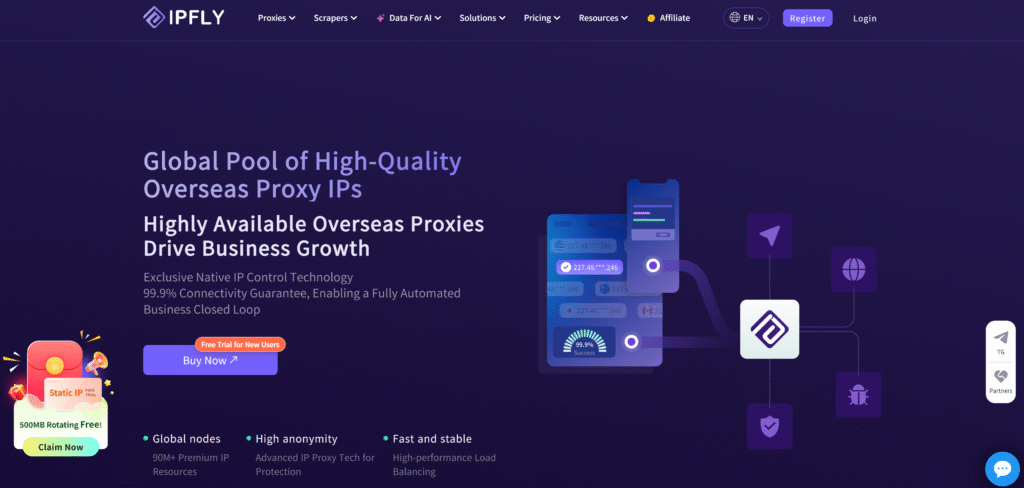
If “your IP has been temporarily blocked” is linked to your current network exit, using another IP address may help restore access. IPFLY offers residential and static ISP proxies for different connection needs, from regional page testing to tasks that require a consistent address.
Residential Proxies for Alternative Network Exits
IPFLY’s residential proxies route requests through residential IP addresses and let you select an available exit location. This provides an alternative when your current shared IP or network range is restricted.
For example, when testing how a website appears in a particular market, you can select an exit in that region and connect through a compatible browser or application. Choose the location your task requires rather than switching regions repeatedly.
Static ISP Proxies for Consistent Connections
For ongoing work, IPFLY’s static ISP proxies provide a dedicated, fixed IP address. This suits tasks that benefit from using the same exit across repeated visits or longer sessions.
A dedicated address also reduces the impact of other proxy customers sharing your exit. However, keeping the IP stable still needs to be paired with reasonable request rates and properly configured applications.
FAQs About Temporary IP Blocks
How long does a temporary IP block last?
A temporary IP block may last minutes, hours, or longer, depending on the website’s rules and what triggered it. Follow any countdown or retry instructions on the error page. If access remains restricted after the stated period, contact the website’s support team.
Why is my IP blocked even though I did nothing wrong?
You may share a public IP with other users whose activity triggered the restriction. Your address could also have a history of suspicious traffic from a previous user. Website security systems sometimes flag legitimate visitors by mistake.
Can an IP block affect other devices on the same Wi-Fi?
Yes. Devices connected to the same Wi-Fi often share a public IP address. If a website blocks that address, multiple devices may lose access to it. Switching browsers or devices alone will not change the shared network exit.
Why am I still blocked after changing my IP address?
The website may restrict an entire network range or also evaluate cookies, browser signals, location, and request behavior. Your replacement IP could be restricted too. Changing your address will not resolve every cause, especially if the activity triggering the block continues.
Can a free proxy fix a temporary IP block?
A free proxy may provide a different exit IP, but it may already be restricted or shared by many users. Performance and privacy practices also vary. Avoid entering passwords or sensitive information through an unfamiliar proxy, and do not assume it will restore access.
Conclusion
Seeing “your IP has been temporarily blocked” is a reason to pause and identify what triggered the restriction. Confirm which website is affected, stop excessive requests, and address browser or network issues before trying again.
If you need an alternative exit or a consistent fixed address, IPFLY’s residential and static ISP proxies offer options for those needs.